Pagination
Grid gives you three different ways to let readers move through your post feed.
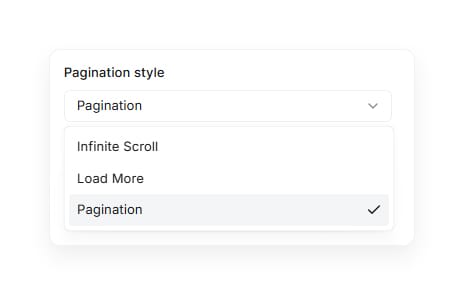
Switch between them anytime under Settings → Design and branding → Brand and theme → Pagination Style — no code required.
Here's what each one does.
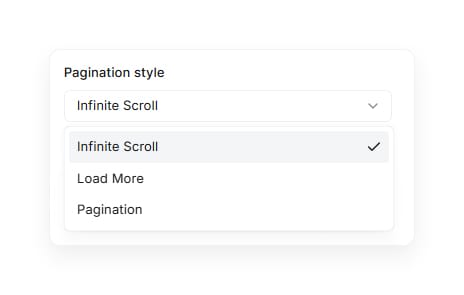
Infinite Scroll
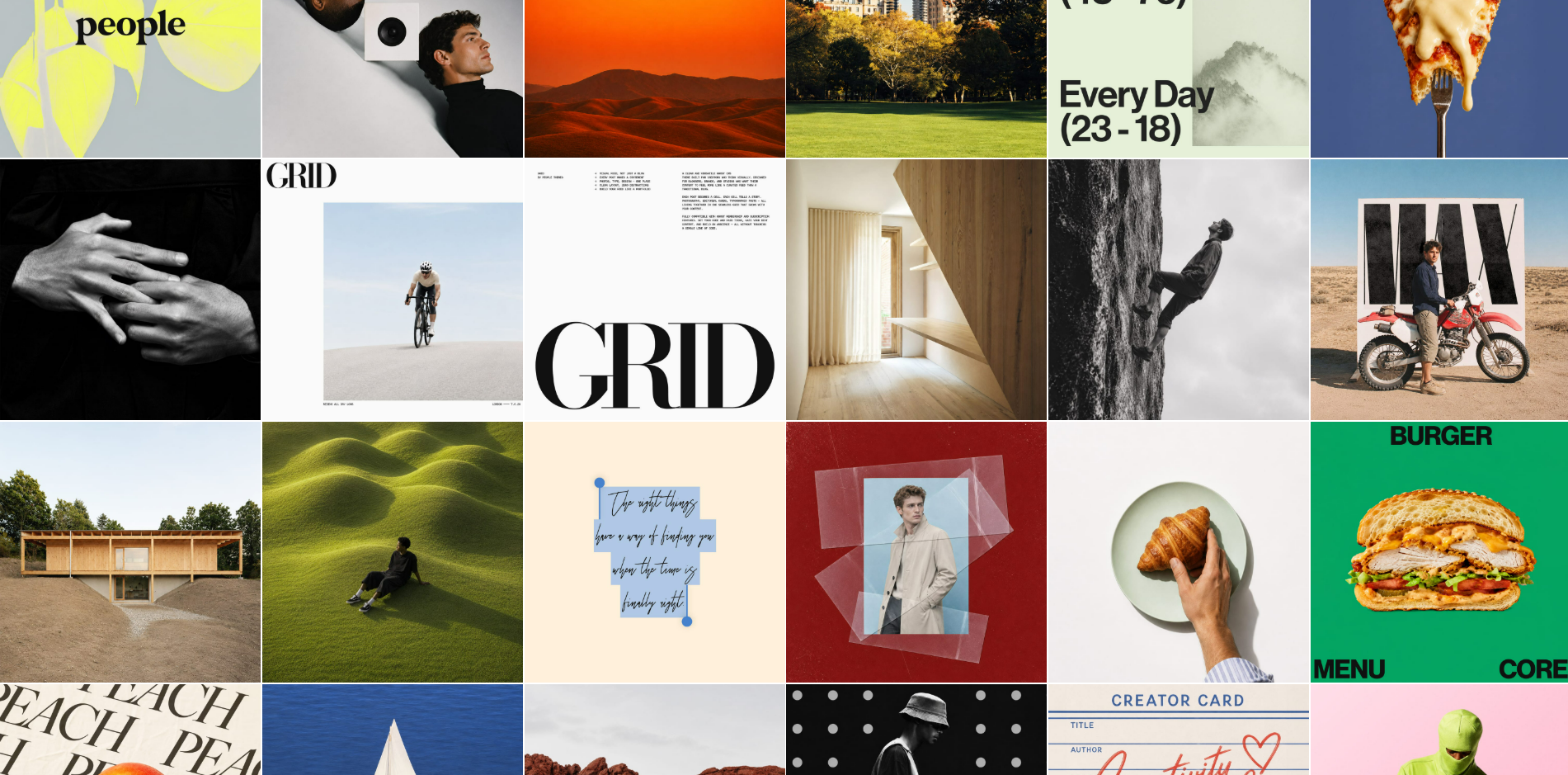
The most hands-off option. As a reader approaches the bottom of the page, the next batch of posts loads in automatically — no clicking required. This is the default setting out of the box.
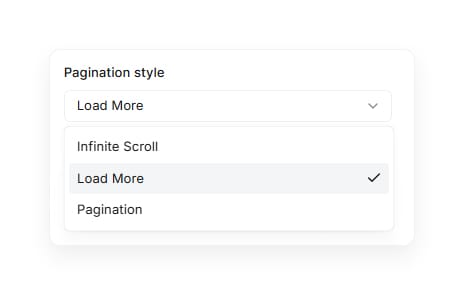
Load More
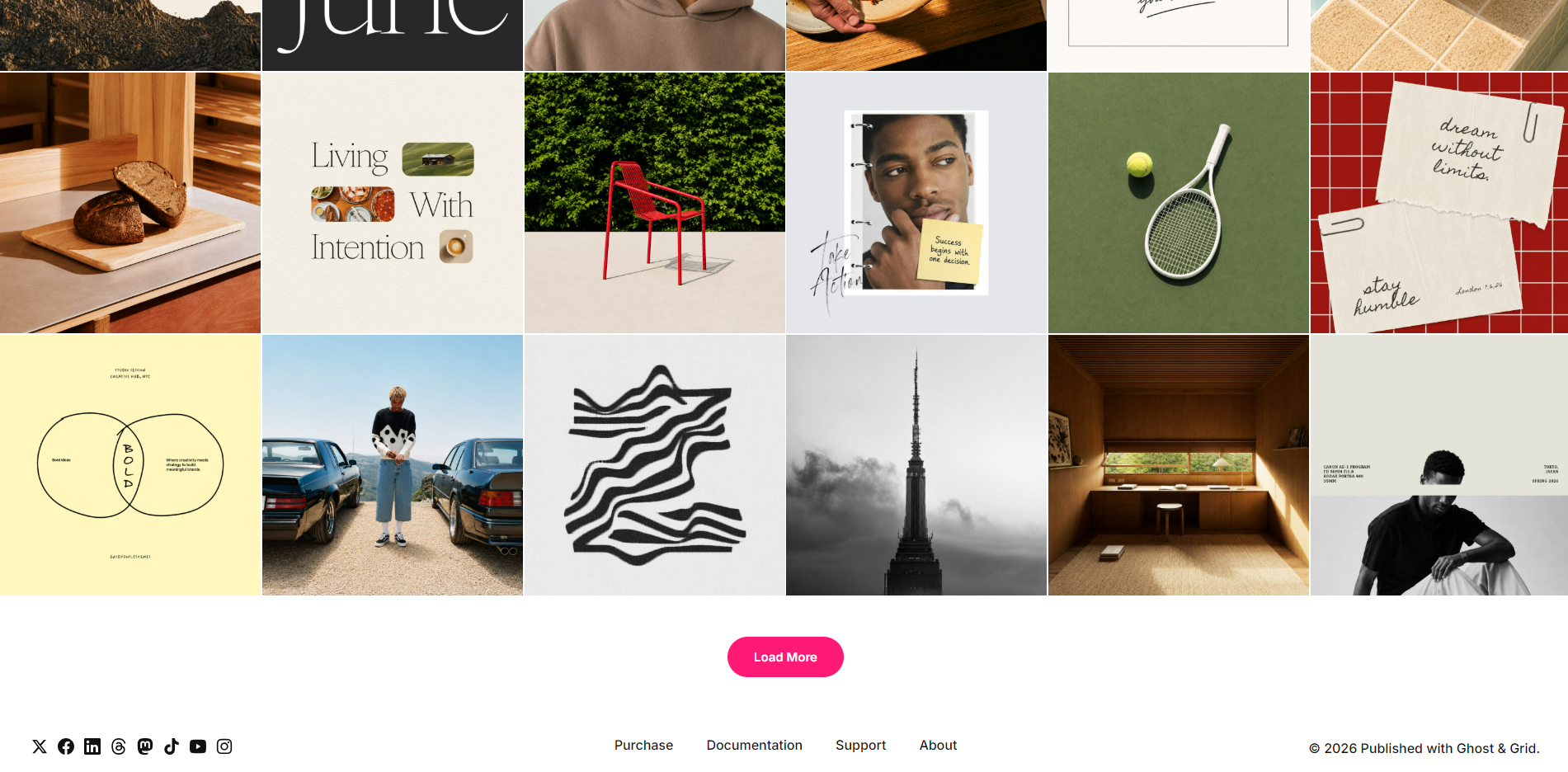
A single load more button appears at the bottom of the feed. Each click fetches and appends the next batch of posts in place — no page reload, no page numbers. The reader stays in control of when more content loads, but nothing loads until they choose to click.
Pagination
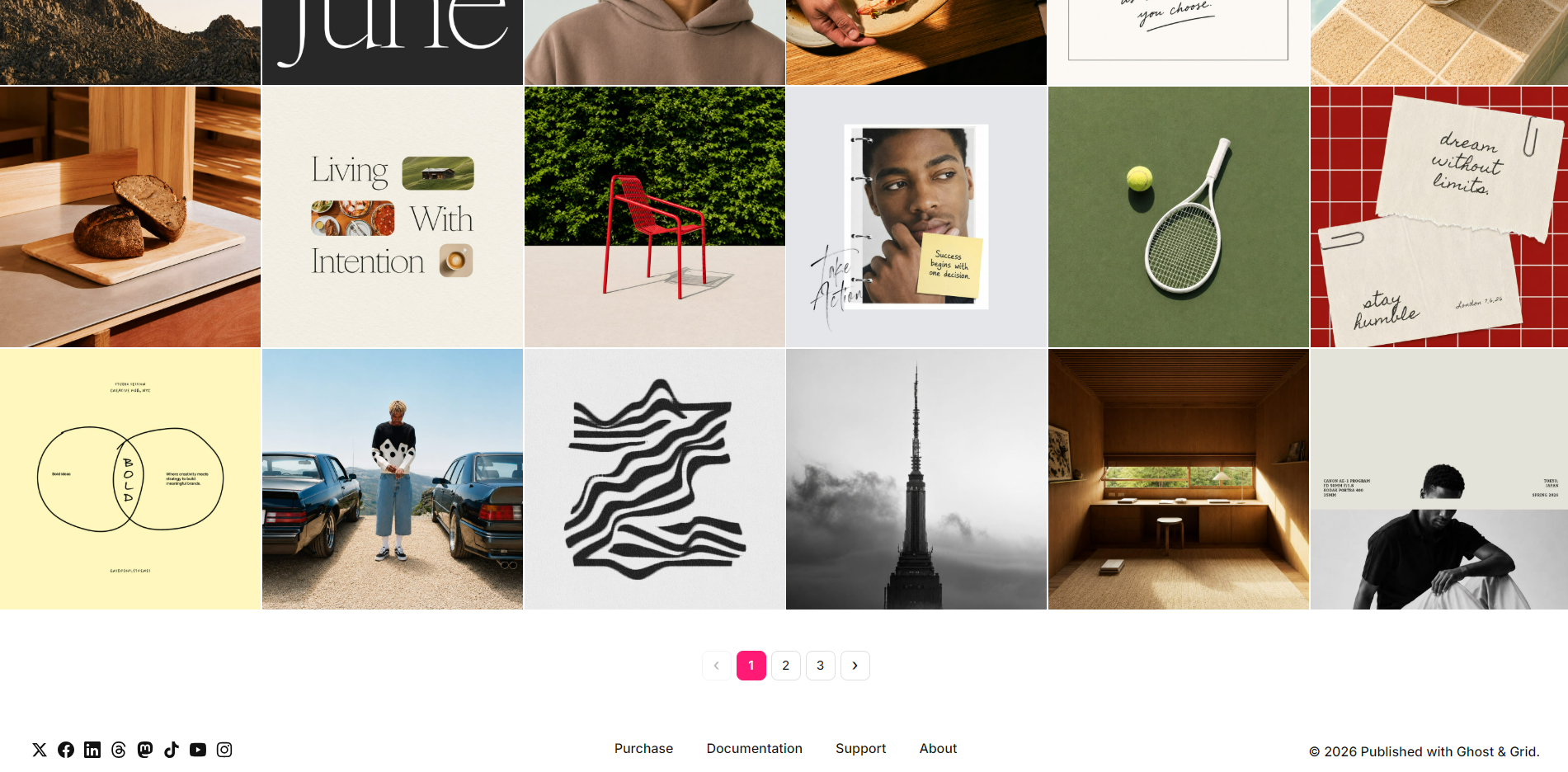
The classic approach: numbered page links at the bottom of your post feed, with ‹ and › buttons to jump to the previous or next page. Readers can see exactly how many pages exist and jump straight to any one of them — page 4, or the very last page — without scrolling through everything in between.
Comparison Summary
Which One Should You Use?
If you're not sure which to pick, start with Infinite Scroll for a visual blog, Load More if you want a bit more reader control without losing that continuous feel, or Pagination if your site has a large archive readers actively browse through.
How to switch?
Changing pagination style takes effect immediately across your homepage, tag pages, and author pages — no need to touch any code or republish individual posts.
- Go to Settings → Design and branding.
- Open Brand and theme.
- Select Theme.
- Find Pagination Style and choose Pagination, Load More, or Infinite Scroll from the dropdown.
- Click Save.